
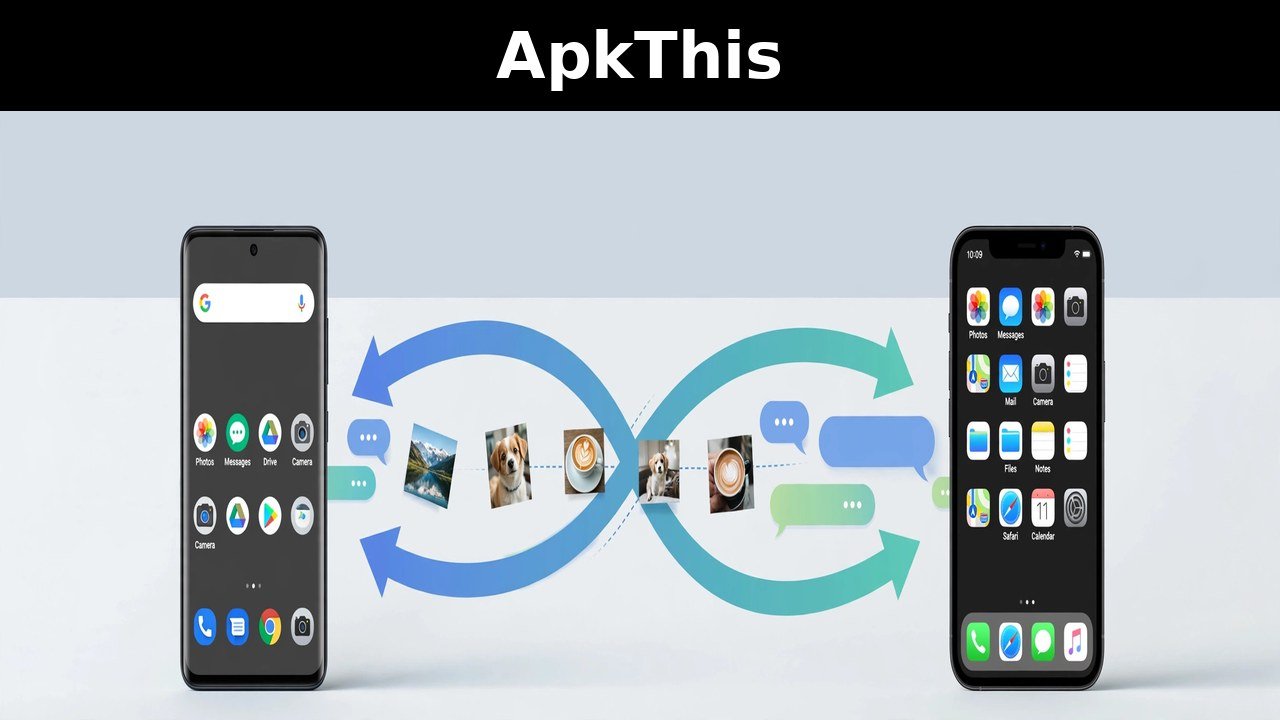
How to Transfer Data from Android to iPhone (2026 Guide)
Switching phones is exciting — until you realize all your photos, contacts, and WhatsApp chats are stuck on your old device. If you want to transfer data from Android to iPhone without losing anything, this guide walks you through the entire process step by step.
The biggest worry for most people is WhatsApp. Chats often get left behind, which ruins the whole experience of moving to a new iPhone. Follow this guide to transfer data from Android to iPhone completely — including WhatsApp.
What You Need Before You Start
- Your old Android phone (fully charged)
- Your new iPhone
- Both phones connected to the same Wi-Fi network
- The free Move to iOS app installed on your Android phone (officially made by Apple, available on the Play Store)
Step 1: Get Your iPhone to the Setup Screen
To transfer data from Android to iPhone during setup, your iPhone must show the welcome screen.
- Brand-new iPhone? You’re already there.
- Already set it up? Go to Settings → General → Transfer or Reset iPhone → Erase All Content and Settings, confirm, and skip the backup. After entering your Apple ID password, the phone resets to the welcome screen.
Step 2: Begin the iPhone Setup
- On the welcome screen, tap Set Up Without Another Device.
- Connect to the same Wi-Fi network as your Android phone — this is how the two phones communicate.
- Continue through the basic setup steps.
Step 3: Choose “Transfer from Android”
When you reach the Transfer Your Apps & Data screen, tap From Android. This is the key step to transfer data from Android to iPhone.
Step 4: Use the Move to iOS App
- Open Move to iOS on your Android phone and accept all permissions.
- On your iPhone, proceed with the transfer — a verification code appears.
- On Android, choose Continue with Wi-Fi (cable is slightly faster, but Wi-Fi works fine).
- Select your iPhone from the detected devices and tap Continue.
- Enter the verification code shown on your iPhone.
Step 5: Select What to Transfer
After a few seconds of processing, you’ll see everything you can transfer data from Android to iPhone with:
- Messages
- Contacts
- Call history
- Photo library (photos and videos)
- WhatsApp (tap it, let it prepare, then continue)
Tap Continue and the transfer begins. You’ll see an estimated time — large transfers can take 30–60 minutes depending on size. When finished, checkmarks confirm success.
Step 6: Finish Setting Up Your iPhone
Tap Continue, sign in with your Apple ID (or do it later in Settings), and your iPhone completes setup with all your apps installed.
How to Transfer WhatsApp Chats to iPhone
This step deserves special attention:
- Open WhatsApp on your iPhone.
- Tap Agree & Continue and allow permissions.
- Enter the same phone number used on Android (no need to move the SIM — the code arrives on your Android phone).
- Enter the 6-digit verification code on your iPhone.
- Tap Start, allow full access — all chats import, including media files.
WhatsApp logs out on your Android phone automatically. You can move your SIM to the iPhone afterwards (WhatsApp works even before you do).
Bonus: Transfer WhatsApp from iPhone to Android
Need the reverse direction? Here’s how:
- On iPhone, open WhatsApp → Profile → Chats → Move Chats to Android.
- Tap Continue and allow permissions.
- On the Android phone, open WhatsApp, agree, and enter your number.
- Scan the QR code shown on the iPhone and join the local network.
- Chats transfer with all media intact.
Frequently Asked Questions
Q: How long does it take to transfer data from Android to iPhone?
A: It depends on the size — around 60 GB takes roughly 45–60 minutes over Wi-Fi.
Q: Can I transfer data from Android to iPhone without Wi-Fi?
A: Yes, a wired connection is slightly faster, but Wi-Fi works perfectly fine.
Q: Will I lose my WhatsApp chats?
A: Not if you follow the steps above — chats and media transfer fully when you transfer data from Android to iPhone with Move to iOS.
Final Thoughts
Learning how to transfer data from Android to iPhone doesn’t have to be stressful. With Apple’s Move to iOS app and a little patience, your photos, contacts, messages, and WhatsApp chats all make the journey safely. Keep both phones on the same Wi-Fi and let the transfer finish uninterrupted.
Related: How to Make App Icons Bigger on Android and Samsung
2 Comments
Comments are closed.