
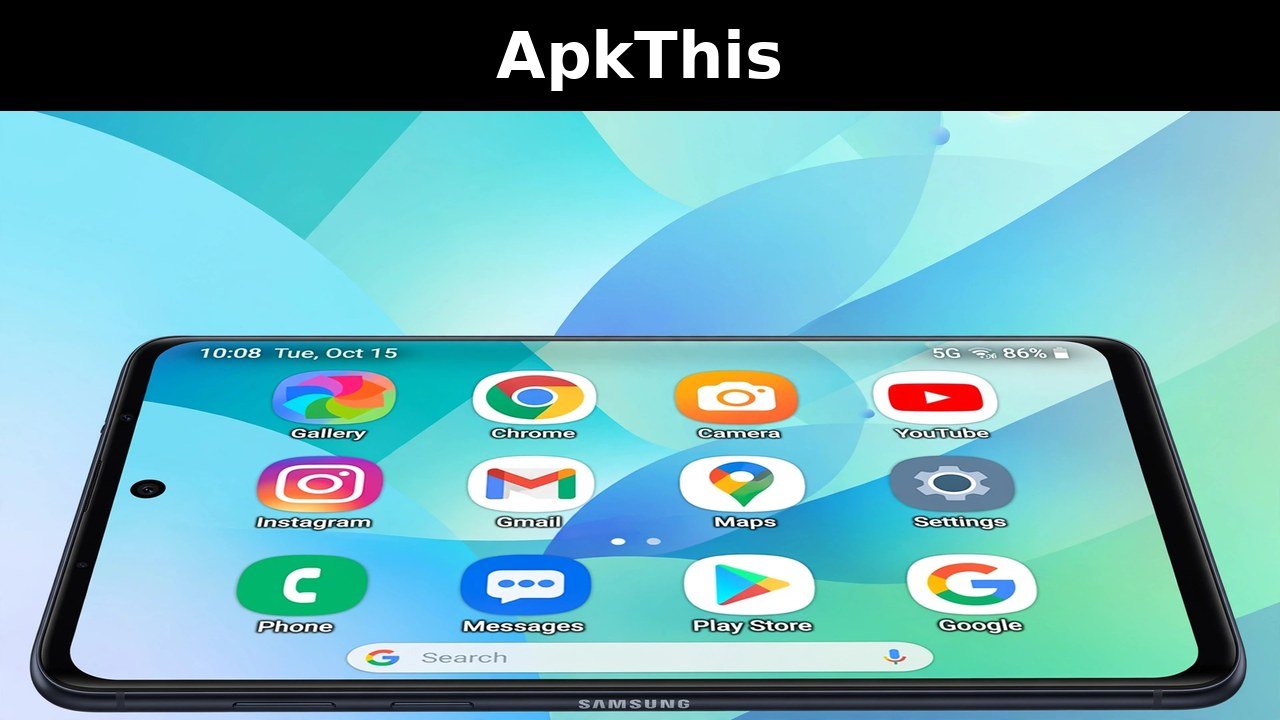
How to Make App Icons Bigger on Android and Samsung (2026 Guide)
Struggling to see or tap the tiny app icons on your Android phone? You’re not alone. Whether you have a Samsung Galaxy or any other Android device, there are several built-in ways to make app icons bigger — no extra apps required. In this guide, we’ll walk you through four simple methods.
Why Make App Icons Bigger?
Larger app icons aren’t just about looks. They are easier to see at a glance and easier to tap accurately, which is especially helpful for users with vision difficulties or larger hands. A cleaner, bolder home screen can also make your phone feel faster and simpler to use.
Method 1: Change the Home Screen Grid (Samsung)
This is the quickest way on Samsung Galaxy phones running One UI. A smaller grid means fewer icons per row — and each icon appears larger.
- Long-press on an empty area of your home screen.
- Tap Settings (or the gear icon).
- Select Home screen grid (for the home screen) or Apps screen grid (for the app drawer).
- Choose a smaller grid, for example 4×5 instead of 5×6.
- Tap Apply or Save.
Your icons will instantly appear bigger. To reverse it, just pick a larger grid again.
Method 2: Adjust Screen Zoom and Display Size (All Android Phones)
This method works on almost every Android phone, including Samsung, Pixel, Xiaomi, and OnePlus. It scales up icons, text, and interface elements across the whole system.
- Open the Settings app.
- Go to Display.
- Tap Screen zoom (on Samsung: Screen zoom and font).
- Drag the slider to the right to enlarge everything on screen.
- The preview at the top shows the effect live — tap Apply when you’re happy.
Note: this changes more than just icons — text and menus get bigger too.
Method 3: Use the App Size Slider (Samsung One UI 7+)
On newer Samsung phones running One UI 7 or later, Samsung added a dedicated app-size slider that resizes icons without touching your layout.
- Pinch inward on the home screen (or long-press and tap Settings).
- Find the app size slider.
- Drag it right for bigger icons or left for smaller ones.
The best part: your icon positions stay exactly where they are — nothing gets rearranged.
Method 4: Use a Third-Party Launcher (Full Control)
If the built-in options aren’t enough, a custom launcher like Nova Launcher gives you pixel-level control over icon size, labels, and spacing.
- Install Nova Launcher from the Play Store and set it as your default launcher.
- Open Nova Settings, go to Home screen, then Icon layout.
- Increase the icon size slider to your liking.
Other good options include Lawnchair and Microsoft Launcher.
Frequently Asked Questions
Q: Will bigger icons change my home screen layout? A: Changing the grid rearranges how many icons fit per screen, but One UI 7’s app-size slider keeps your layout untouched.
Q: Can I make only some icons bigger? A: Not with stock settings — icon size applies system-wide. With Nova Launcher, you can resize individual icons.
Q: Does this work on tablets too? A: Yes. Screen zoom works on Android tablets, and Samsung tablets have the same home screen grid settings.
Final Thoughts
Making app icons bigger on Android is easier than most people think. Start with the home screen grid or screen zoom settings — they take less than a minute and need no extra apps. If you want total control, a third-party launcher is the way to go.
3 Comments
Comments are closed.