
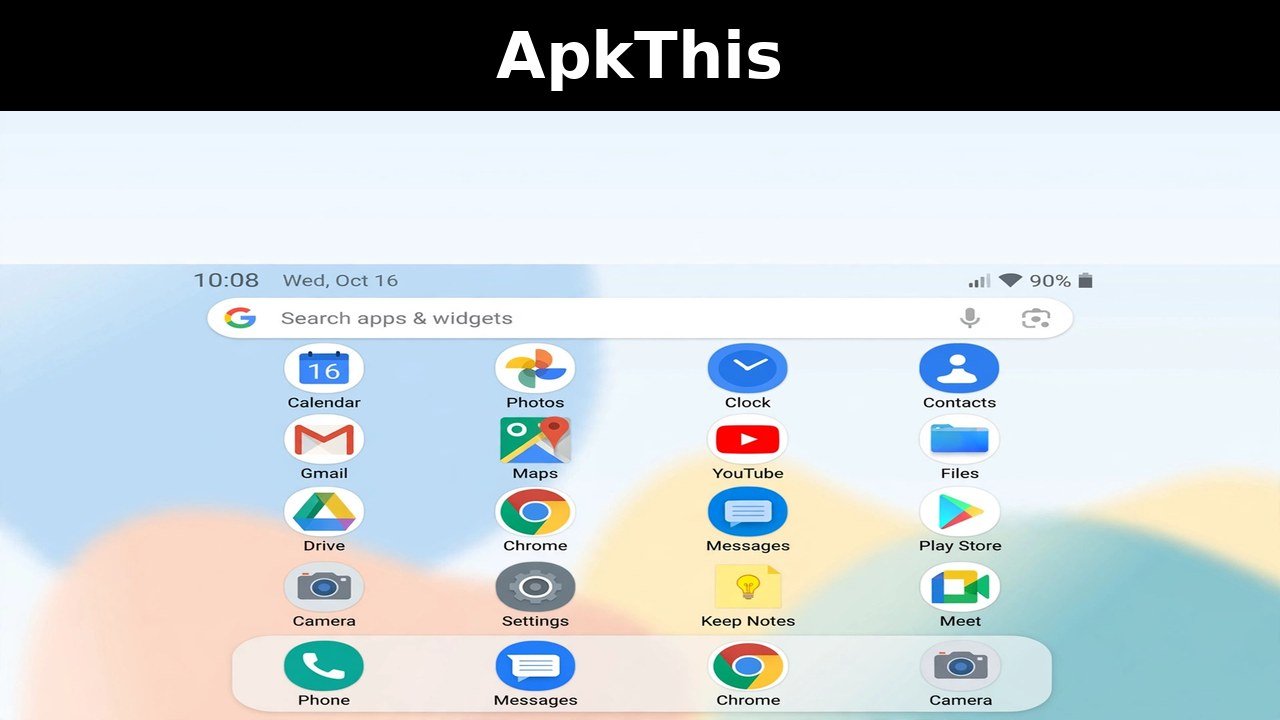
Changed your app icons and now miss the original look? Learning how to reset app icons to default on Android is easier than you think — and you don’t need to factory reset your phone or delete a single photo.
Many people customize their phones with icon packs, themes, or third-party launchers to make them look attractive. But these changes can clutter your home screen and even slow your phone down. The good news: you can restore the default app icons in just a few taps.
Why Do App Icons Change?
App icons usually change when you:
- Apply a new theme from the theme store
- Install an icon pack app
- Switch to a third-party launcher
- Rename apps with customization tools
Whatever the cause, the fix to restore the original icons is quick and safe.
Method 1: Reset App Icons to Default
This is the simplest way to restore your phone’s original icons, and it works on almost every brand — Samsung, Xiaomi, Vivo, Oppo, and Realme.
- Open the Settings app on your phone.
- Tap Personalization, Themes, or Wallpaper & style.
- Open the Theme Store.
- Tap your profile or account (often labeled “Me”).
- Go to My Themes, My Stuff, or My Resources.
- Select the Default theme and tap Apply.
Within seconds your phone returns to normal — every app icon restored exactly as it looked when the phone was brand new. This method to restore the default look takes less than a minute.
Method 2: Switch Back to the Default Launcher
If you installed a third-party launcher, icons may still look different after restoring the theme. To fully reset app icons to default:
- Open Settings.
- Go to Apps, then Default apps (or search “default launcher”).
- Tap Home app.
- Choose your phone’s system launcher (for example One UI Home on Samsung).
Your home screen instantly returns to the stock layout with the original icons.
Method 3: Uninstall Icon Pack Apps
Icon packs override your default icons. To reset app icons to default, just remove them:
- Open Settings → Apps.
- Find the icon pack app in the list.
- Tap Uninstall.
Android automatically restores the original icons once the pack is gone.
Will This Delete My Data?
No. When you restore the default icons, only the visual appearance changes. Your apps, photos, messages, and files stay completely safe — no factory reset needed.
Frequently Asked Questions
Q: Does this work on Samsung phones? A: Yes. Go to Settings → Themes → My stuff → select the Default theme → Apply. This will reset app icons to default on any Samsung Galaxy device.
Q: What about Xiaomi or Redmi phones? A: Open the Themes app → Profile → Downloaded → select Default → Apply. Same result.
Q: My icons still look different. What now? A: A third-party launcher is probably still active. Follow Method 2 to switch back to the system launcher and fully restore the original icons.
Final Thoughts
You don’t need any technical skills to reset app icons to default on Android. Restoring the default theme takes less than a minute, costs nothing, and brings back that clean, brand-new phone look — with zero data loss.
Related: How to Make App Icons Bigger on Android and Samsung (2026 Guide)