
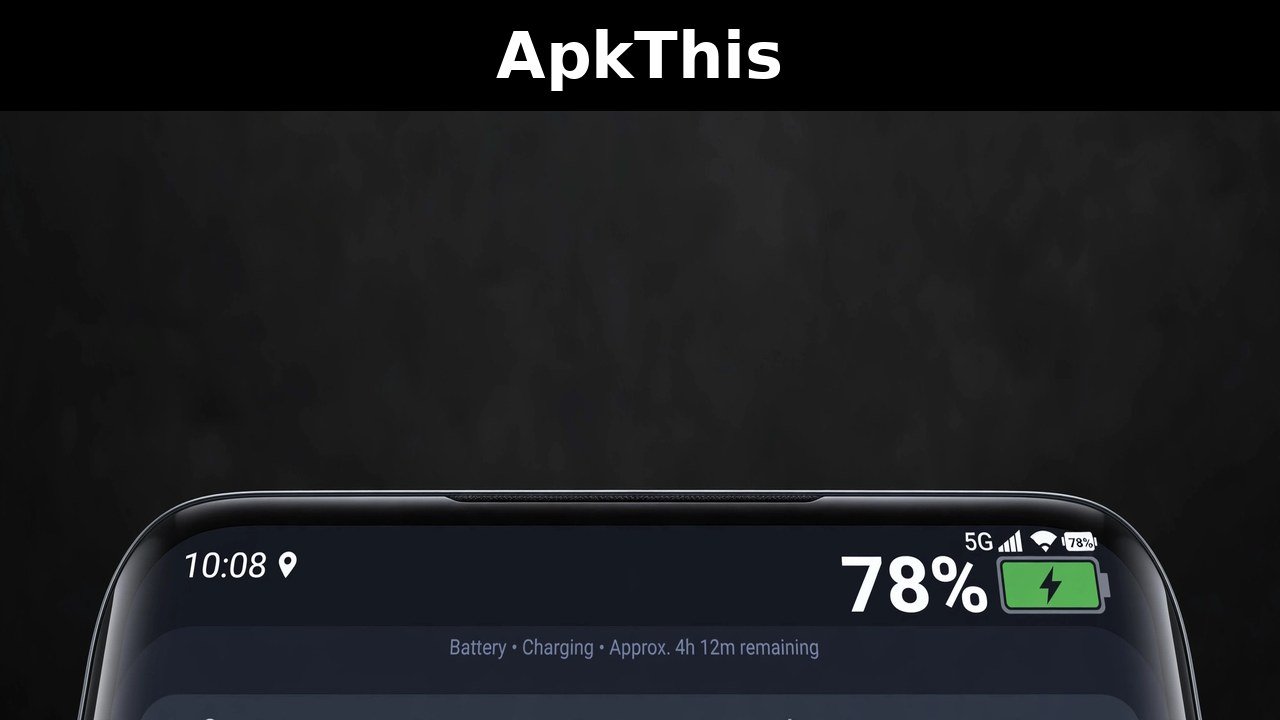
in this I’m going to show you how to make the battery icon larger on your Android phone Now if I swipe down from the top right you can see that battery icon at the top right that says 45 but it is very small indicating how much battery I have left and telling me essentially when I need to charge my phone Let’s walk through some steps to make that bigger
Method 1: Show Battery Percentage Instead of the Icon
The first thing you’re going to do is swipe up and tap on settings From here tap on search and search for battery Scroll down on the search results until you find under notifications show battery background and tap on that On here turn off show battery background You can see the change that it makes at the top right instead of a battery icon with the number in it which a lot of times is hard to read If you toggle it off it’ll just be the percentage which is a bit easier to read That’s the first thing you can do but it doesn’t necessarily make it bigger It just makes it easier to read
Method 2: Turn On Easy Mode
So let’s go back to the beginning of your settings and make it easier to read The first thing that you can do is scroll down tap on display scroll down again and tap on easy mode You can see easy mode makes text and onscreen items appear larger Try toggling on easy mode and you’ll be able to see everything is larger and everything is more bold I can swipe down from the top right and you can see again the clock and the time and the Wi-Fi as well as the battery are a bit easier to read They’re bolded and slightly larger So we’re working through steps but you can see it does change the home screen on your Android phone and it makes all of the apps and widgets and everything larger If you prefer this you can keep it
Method 3: Add a Battery Widget to Your Home Screen
Or if you prefer the third option where you only see the battery larger but everything else is the same What you’re going to do is go back to the home screen on your Android phone and press and hold on the screen It’ll look something like this Make sure you’re not pressing on an app itself but pressing on the background Tap on widgets at the bottom right Scroll down and tap on battery Tap on the 2x one battery And you’ll be able to see I can tap on add And it adds that battery widget Now unfortunately there’s no widget that just allows one battery that will just show this Android phone But I can tap on that battery icon and hit settings and tap the opacity all the way to the right And I can choose to turn the background on or off depending on your preference And hit save And now without ever needing to look at the very top right I can see the battery that I have left In this case 45% And you’ll get a clear indication of when you need to plug your phone back in and charge it for the day or for the night I hope this helps